Your original design is never changed. A new copy is created, so you are free to edit the new version without affecting the original.
In the editor, this feature is called Copy and Resize.
- Good to know: This is an admin only feature. Only admins and global admins will see it. You can use it on any design, whether it is a live master template or a design saved on a dashboard.
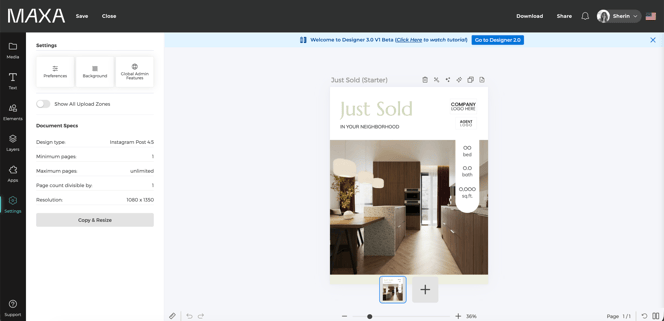
Create a New Design from an Existing Design- From your Dashboard, open the design you want to convert.
- In the left-hand menu, click Settings, then Copy and Resize.
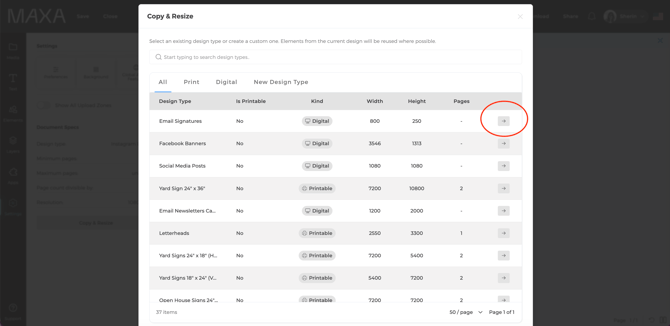
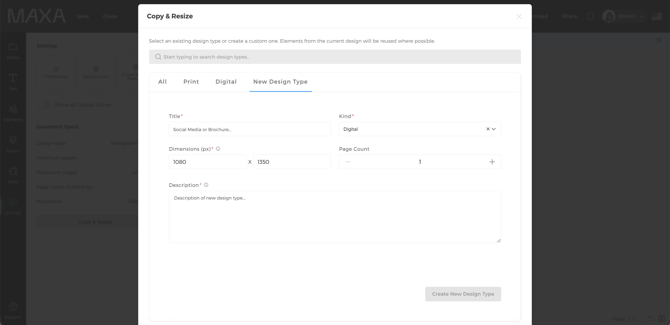
- The Copy and Resize window opens. From here you can browse the available design types and sizes, or search for a specific one.
- Choose one of the two options below:
- Existing Design Type: locate the desired option and click the arrow (→) on the far right of the row.
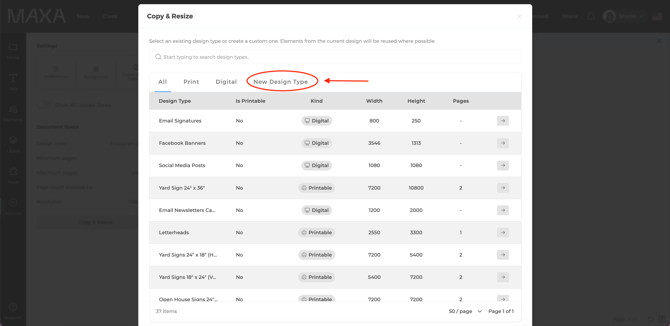
- New Design Type: Select New Design Type in the options menu. A form opens with your current design's details already filled in. Update the fields you need and click Create New Design Type.
- Existing Design Type: locate the desired option and click the arrow (→) on the far right of the row.
- A new window opens with your design resized to the type you picked. Existing elements will be reused and scaled where possible.
- Review the new design and adjust anything that needs it before you save or publish.
Note: Your original design is not touched. The resized version is a separate copy.
Choose How to Save Your New Design
After resizing your design, click Save. You'll be prompted to choose how to save it:
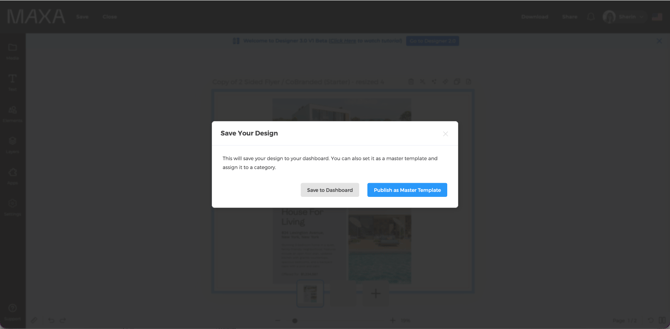
- Save to Dashboard: The new design is saved to your dashboard, ready to edit or use.
- Save as a Master Template: You are taken to the design edit page so you can assign it to a category. Once saved, it becomes a template.
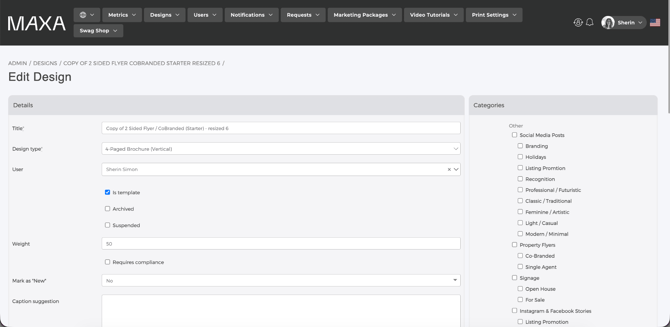
Pick whichever fits what you are trying to do. Save to Dashboard is best for a one-off design. Save as a Master Template is best when you want the new size available to your users.
What Happens to Your Pages
Your new design type may have a different number of pages than your original. Here is how each case is handled.
- Same number of pages: Every page carries over as expected.
- New type has more pages: Your original pages fill the matching pages first. Any extra pages are added as blank pages for you to fill in. For example, a 2-page brochure copied into a 4-page brochure puts your content on pages 1 and 2 and leaves pages 3 and 4 blank.
- New type has fewer pages: You choose which of your pages to carry over. If you reach the page limit and pick another one, the oldest selection drops off so the newest one can be added.
- 1 page into 2 pages: Your original design lands on page 1, and page 2 is created blank. This is common when going from a flyer to a postcard.
What Happens to Your Layout
When your new canvas is a different size, your content is reused and scaled to fit as closely as possible. If the new canvas is smaller, the entire original design is shrunk down so it fits inside the new size.
Because sizes and shapes vary, you will usually still need to move and adjust elements by hand so everything looks right in the new format. Plan to give the new design a quick cleanup after it opens.
Print Design Types
You can turn a digital design into a print design type using this feature.
Before you convert, check the Is Printable column for the design type you are choosing. If it says No, that type is not set up to print through Maxa's print partners yet. Your design will still be created, and you will see a message letting you know you can download it and print it on your own.
The same is true when you create a brand new print design type. It will not be printable through Maxa right away, because a print configuration has to be set up for it first.
You can download and self-print in the meantime. To make it a proper printable master template, reach out to your Maxa contact so they can set up the print configuration.
Tips for Best Results- Always review the new design before saving. Scaling gets you close, but a few tweaks are usually needed.
- Use Save as a Master Template only when you want the new size available to your users. Otherwise, Save to Dashboard keeps things tidy.
- Your original is safe. If a resize does not turn out the way you hoped, your starting design is untouched, so you can try again.
- Who can use Change Design Type? Only admins and global admins. If you do not see the Copy and Resize option under Settings, you likely do not have admin access.
- Can I resize any design, or only templates? Any design. It works on live master templates and on designs saved to a dashboard.
- Does this change my original design? No. A separate copy is created every time. Your original stays exactly as it was.
- My content looks squished or out of place in the new size. Is that normal? Yes. Elements are scaled to fit, but different sizes and shapes mean you will usually need to rearrange things by hand. Just move and resize the elements until the new design looks right.
- I converted to a print design type but got a warning that it cannot be printed. What does that mean? It means that design type is not set up to print through Maxa's print partners yet. This can happen with an existing print format that shows No in the Is Printable column, and it also happens with any brand new print design type you create, since a print configuration has to be set up for it first. Your design is still created and saved either way. You can download it and print it yourself, or reach out to your Maxa contact to set up printing so it can be printed through Maxa.
- Why can't I click Create New Design Type? The button stays greyed out until all required fields are filled in. Required fields are marked with a star. Check that none of them are blank.