
What Makes Reel Templates Unique
Listing Reel templates do not use upload zones or text replacement fields like regular templates. Instead:
- Sample photos: the photos you add are only there to show agents what the reel will look like in the preview. When an agent selects a listing, they are replaced with the listing photos automatically, in MLS order.
- Placeholder text: the text on the intro card (for example, "123 Main Street") is replaced with the agent's listing details.
- Agent details: the outro card, logo and brand fonts pull from each agent's own Account Information, so agents always see their own details, not yours.
You only need to do this once. If your platform already has a Listing Reel design type, skip to Step 2.
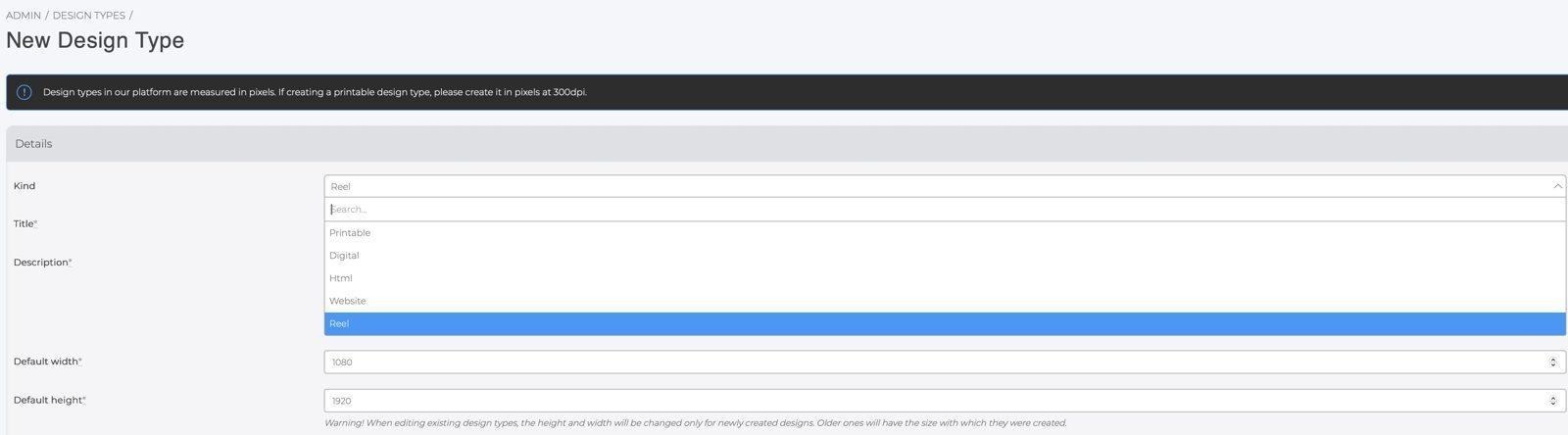
- In the admin panel, go to Design Types and click New Design Type.
- In Kind, select Reel.
- Enter a Title (for example, "Listing Reel") and a Description.
- Click Save.
Note: If you run into any issues setting up your design type, reach out to our Support team.
Step 2: Create the TemplateCreate your template the same way you create any other template:
- Go to Designs and click New Design.
- Select your Listing Reel Design type, check Is template, and choose the categories where agents will find it.
- Click Save. The Listing Reel editor opens.
Your new template opens with an intro card, a photo slide and an outro card.
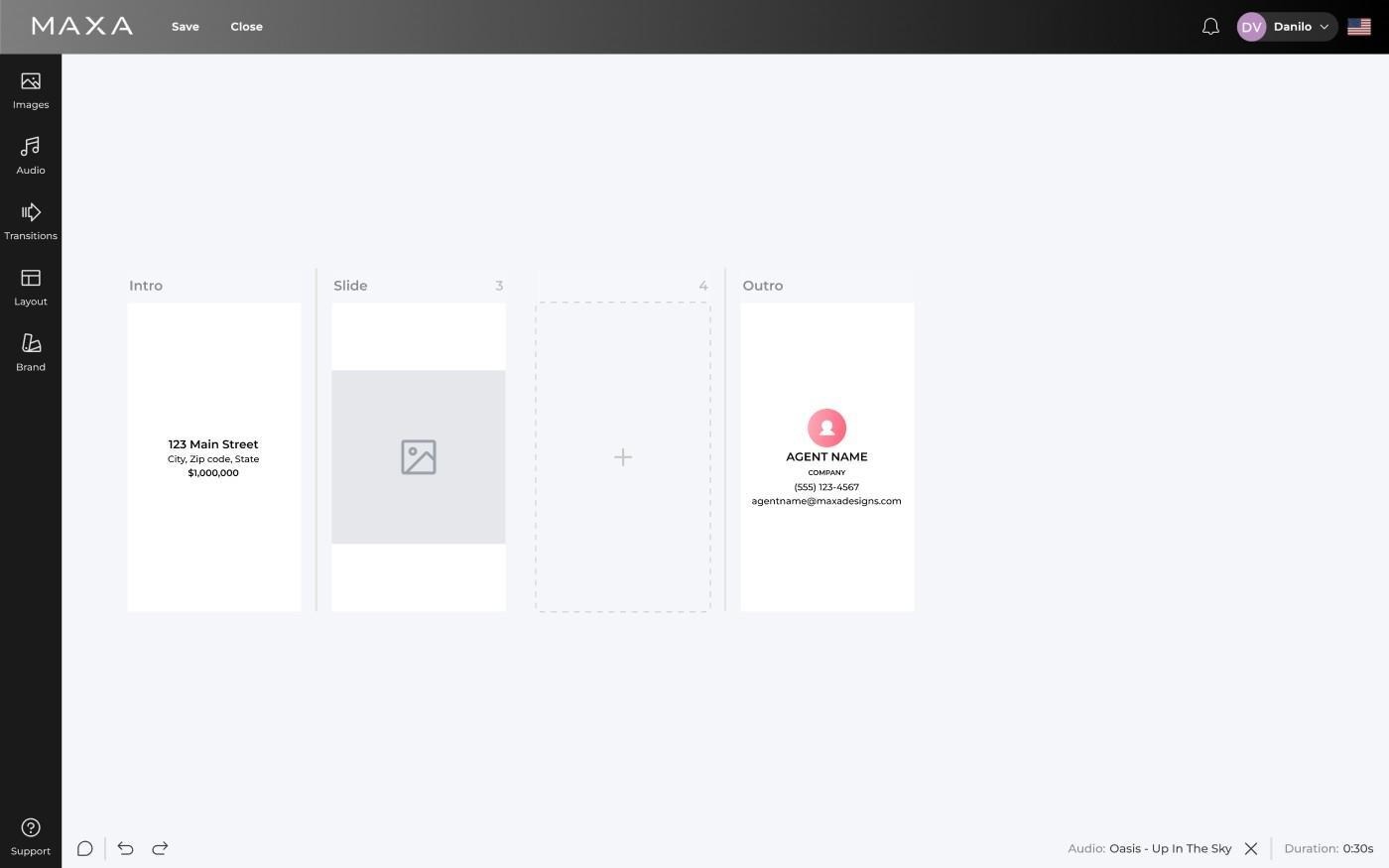
- Click the empty photo slide, or click Images in the left menu.
- Click Upload Your Files and choose a photo from your computer (up to 5 MB).
- Click the uploaded photo to add it to the slide.
- To add more slides, click the + slide and repeat. You can add up to 10 photos.
Important: Always add sample photos. Without them, the template preview only shows the intro card on a solid background, and agents cannot see what their reel will look like.
Tip: Use high quality real estate photos that you have permission to use. Agents never see these photos in their own reels.
Step 4: Style the TemplateUse the tabs in the left menu to set the starting look for your agents:
- Layout: choose the image fit and background color (black, white or your brand colors), turn the intro and outro cards on or off, and set their text alignment and size.
- Transitions: choose Cut or Slow fade for the whole video.
- Audio: pick the music.
- Brand: turn the logo on or off, set its position and size, and choose the font and font color for the intro and outro cards.
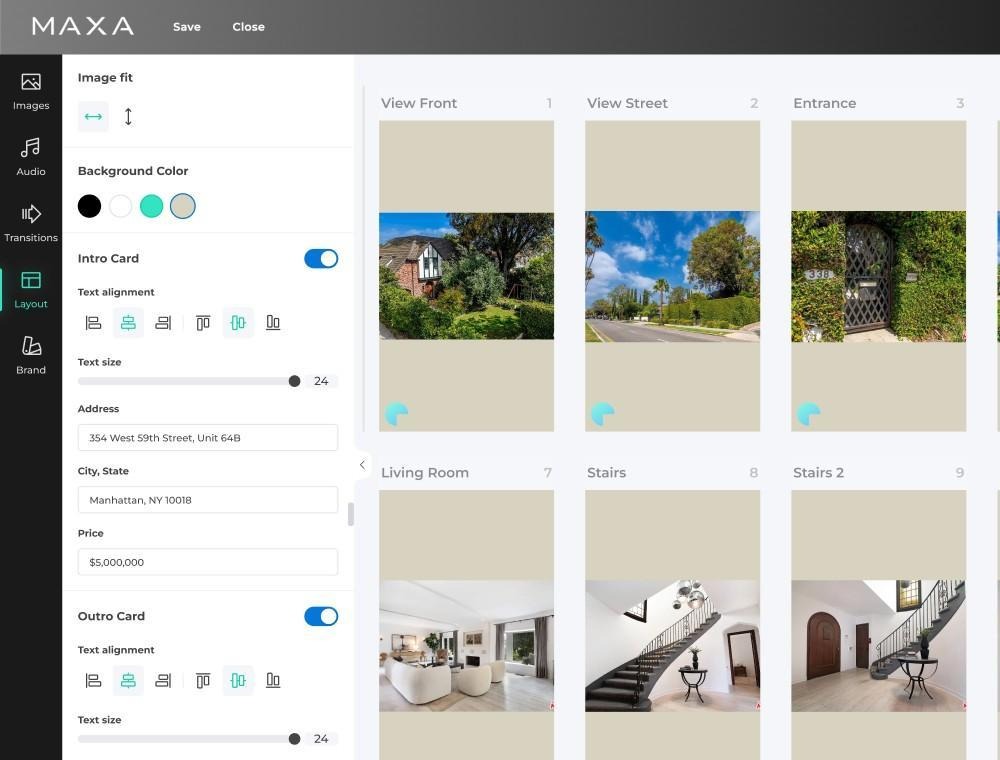
Good to know: Agents can still adjust these settings in their own reel. Your template gives them an on brand starting point.
Tip: For the best results, make sure your agents have a logo, a profile photo and brand fonts in their Account Information.
Step 5: Save and Check the Preview- Click Save at the top of the editor, then click Close.
- On your Dashboard, open the category you chose in Step 2.
- Click your template. The preview plays through your slides, just like your agents will see it.
You can add a Listing Reel template to your automated marketing packages the same way you add other templates. When a package is created for a listing, the reel is created with that listing's photos and details, and the agent's information on the outro card.
Good to know: Reels in packages are not rendered automatically. Your agents open the reel from the package and follow the same process as any other reel: review it, make changes if they like, and click Render Video. Package downloads, emails and print orders do not include the reel.
Frequently Asked QuestionsWhy does my template thumbnail look blank? The Dashboard thumbnail shows the intro card. To give agents a full preview, add sample photos to the template (see Step 3).
My new template opened with no intro or outro card. What should I do? A new template should always start with an intro card, a photo slide and an outro card. If yours does not, reach out to our Support team.
Will my sample photos show up in my agents' reels? No. When an agent selects a listing, the sample photos are replaced with the listing photos automatically.
Will agents see my name and logo? No. The outro card, logo and brand fonts come from each agent's own Account Information.
How many photos can a reel have? Up to 10 photos, plus the intro and outro cards.
Can agents use their own photos? Yes. Agents can upload their own photos in the Images tab, up to 5 MB each.
Can I add more property details to the intro card, like bedrooms and bathrooms? Not at this time. The intro card shows the address, city and price.
Can agents create reels from the mobile app? Not at this time. Listing Reels are available on the web version of the platform.