---
title: How to use the HTML 2.0 Advanced Mode
description: How to to use the HTML 2.0 Advanced Mode
---
[Skip to content](https://support.maxadesigns.com/knowledge/how-to-to-use-the-html-2.0-advanced-mode#main-content)

Open main navigation
Close main navigation
How can we help?
- There are no suggestions because the search field is empty.
1. [Knowledge Center Home](https://support.maxadesigns.com/knowledge?hsLang=en)
2. [Resources for Marketing Team](https://support.maxadesigns.com/knowledge/resources-for-marketing-team?hsLang=en)
# How to use the HTML 2.0 Advanced Mode
## Advanced Mode offers high level customization for admins
Choose an **HTML** template from your dashboard -newsletters or signatures, then select **Create Design**. In the left panel, ensure **Advanced Mode** is enabled—if it isn’t, click **Settings** in the left panel and turn it on. Once Advanced Mode is active, you’ll see **Structure, Block Elements, and Inline Elements** available for your design.
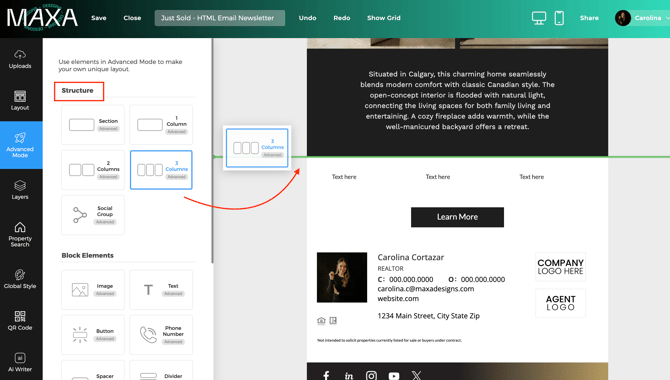
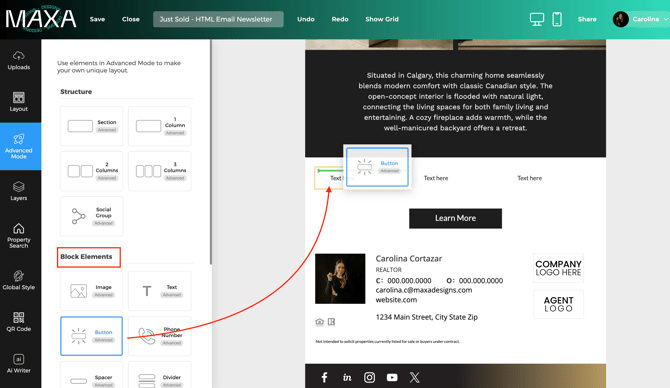
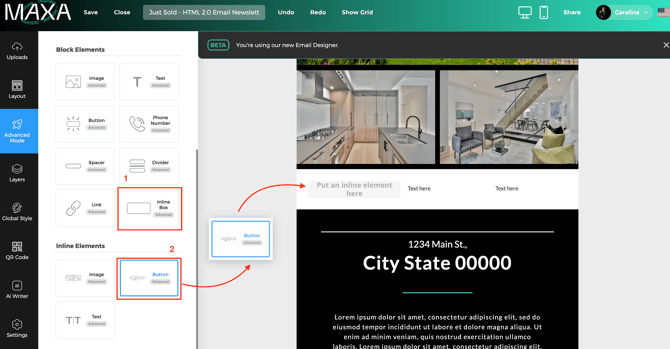
Build designs by dragging a **Structure** first, then placing **Block Elements** inside it; use an **Inline Box** to add **Inline Elements** (text/image/button) horizontally — inline elements must live inside an Inline Box, not directly in columns.
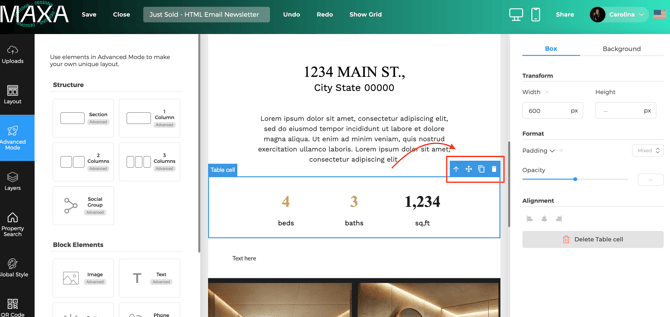
To move entire sections, click on the space outside the canva and make sure the blue box text says "section", then a blue box will appear in the top right of that section with some tools like **Move** and **Duplicate** icons to rearrange items.
Preview with the **Mobile/Desktop** buttons (top-right), and test using **Share** → **Send test email** or connect your platform to send the email campaign.
**Step by step:**
1. Dashboard → open **HTML - campaigns or signatures** → click **Create design**.
2. Left panel → click **Advanced Mode**. If it´s not enabled, go to settings and turn it on.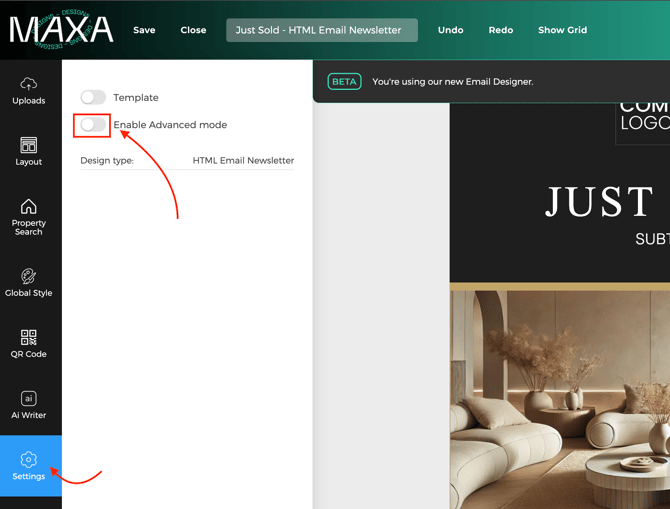
3. Click on **Advanced Mode** and drag a **Structure** onto the canvas.
4. Drag a **Block Element** into the Structure.
5. To build an inside structure, first add an **Inline Box**, then add **Inline Elements** inside it (text/image/button).
6. Use **Move** and **Duplicate** icons in the blue box when selecting an element to rearrange elements or columns.
7. Preview: click **Mobile / Desktop** (top-right of your designer).
8. Test email: **Share** → **Send test email** → **enter your email** → **Send**.
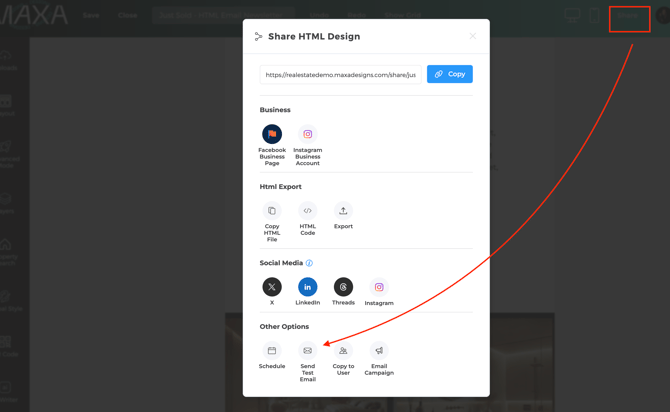
9. To publish/send: **Connect to your platform** → **Share / Send email campaign**.
**Note:** Inline elements **cannot** be added directly to columns — they must be inside an Inline Box.
- [Getting Started](https://support.maxadesigns.com/knowledge/getting-started?hsLang=en#main-content)
- [Setting Up Your Account](https://support.maxadesigns.com/knowledge/getting-started?hsLang=en#setting-up-your-account)
- [Dashboard Tips & Tricks](https://support.maxadesigns.com/knowledge/getting-started?hsLang=en#dashboard-tips-tricks)
- [Design Customization](https://support.maxadesigns.com/knowledge/design-customization?hsLang=en#main-content)
- [Editing Designs](https://support.maxadesigns.com/knowledge/design-customization?hsLang=en#editing-designs)
- [Automated Marketing Packages (AMP)](https://support.maxadesigns.com/knowledge/design-customization?hsLang=en#automated-marketing-packages-amp)
- [Managing MLS Info](https://support.maxadesigns.com/knowledge/design-customization?hsLang=en#managing-mls-info)
- [HTML & Email Marketing](https://support.maxadesigns.com/knowledge/design-customization?hsLang=en#html-email-marketing)
- [Sharing & Exporting Designs](https://support.maxadesigns.com/knowledge/design-customization?hsLang=en#sharing-exporting-designs)
- [Market Stats](https://support.maxadesigns.com/knowledge/design-customization?hsLang=en#market-stats)
- [QR Code](https://support.maxadesigns.com/knowledge/design-customization?hsLang=en#qr-code)
- [AI Features](https://support.maxadesigns.com/knowledge/design-customization?hsLang=en#ai-features)
- [Print & Mailing List Tool ](https://support.maxadesigns.com/knowledge/print-mailing-list-tool?hsLang=en#main-content)
- [Downloading](https://support.maxadesigns.com/knowledge/print-mailing-list-tool?hsLang=en#downloading)
- [Compliance](https://support.maxadesigns.com/knowledge/compliance?hsLang=en)
- [Design Concierge](https://support.maxadesigns.com/knowledge/design-concierge?hsLang=en)
- [General](https://support.maxadesigns.com/knowledge/general?hsLang=en)
- [Resources for Staff / Office Admins](https://support.maxadesigns.com/knowledge/resources-for-staff-office-admins?hsLang=en)
- [Resources for Marketing Team](https://support.maxadesigns.com/knowledge/resources-for-marketing-team?hsLang=en)
- [Still Need Help?](https://support.maxadesigns.com/knowledge/still-need-help?hsLang=en)
[](https://www.maxadesigns.com/)
#1 Rated Marketing Center
We make marketing leaders superhuman
© Maxa Software, Inc.