
Where to find it: Admin Panel > Marketing Packages > Package Approvals
Before You Start
Package Approvals is an opt-in feature. To turn it on for your account, reach out to your Client Success Manager and let them know how much you want to review:
- Every default package: every default Listing, Market Stats, and Testimonial package comes to you for approval automatically.
- Only the packages you choose: a package comes to you for approval only when Requires Admin Approval is checked on that package.
Note: Company packages only come to you for approval when Requires Admin Approval is checked on that package.
Step 1: Give Your Admins Access
Assign one of these roles to each admin who will review packages:
- Package Approval Admin: reviews packages across your whole account.
- Office Package Approval Admin: reviews packages only for the offices assigned to them. Make sure their offices are set up correctly.
Tip: After the role is saved, have the admin refresh the page. If Package Approvals still doesn't show up, sign out and back in.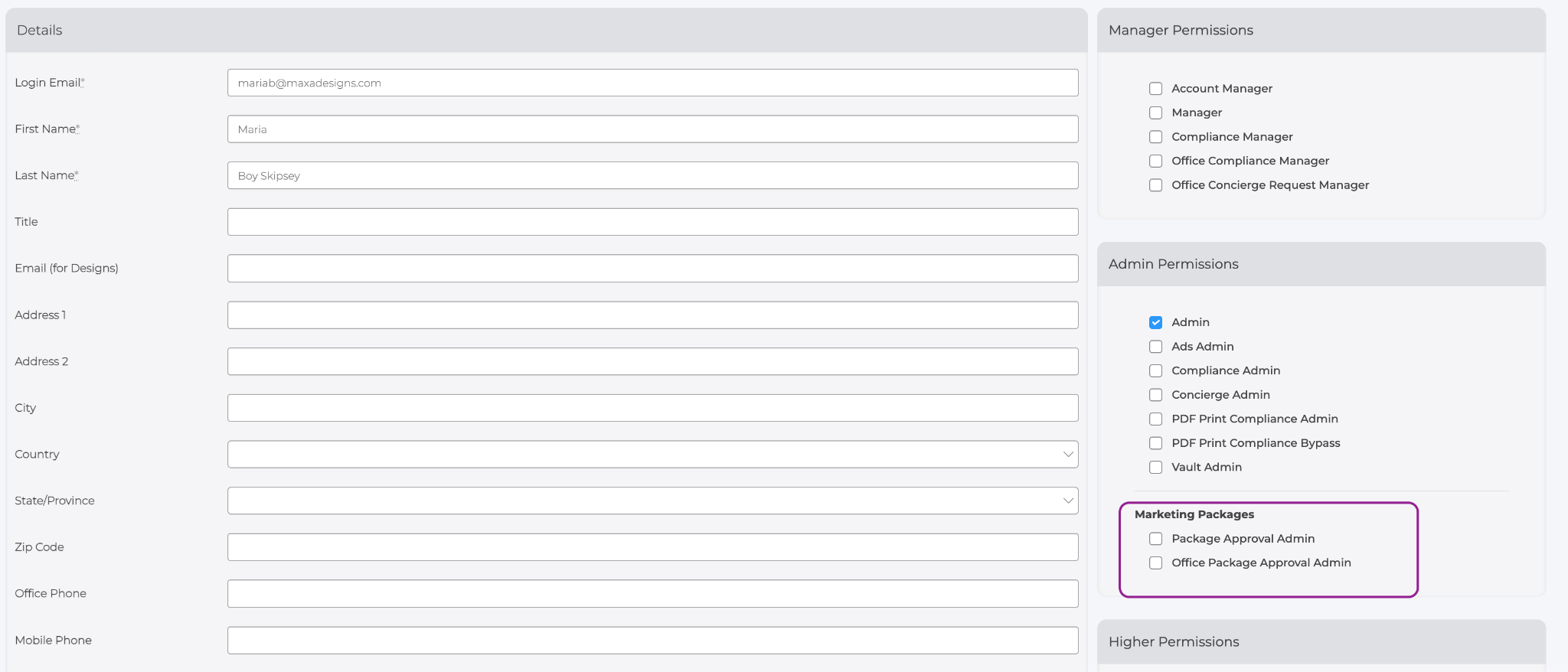
Step 2: Review Your Packages
- Go to Admin Panel > Marketing Packages > Package Approvals.
- Select a tab: Listing Packages, Company Packages, Market Stats Packages, or Testimonial Packages.
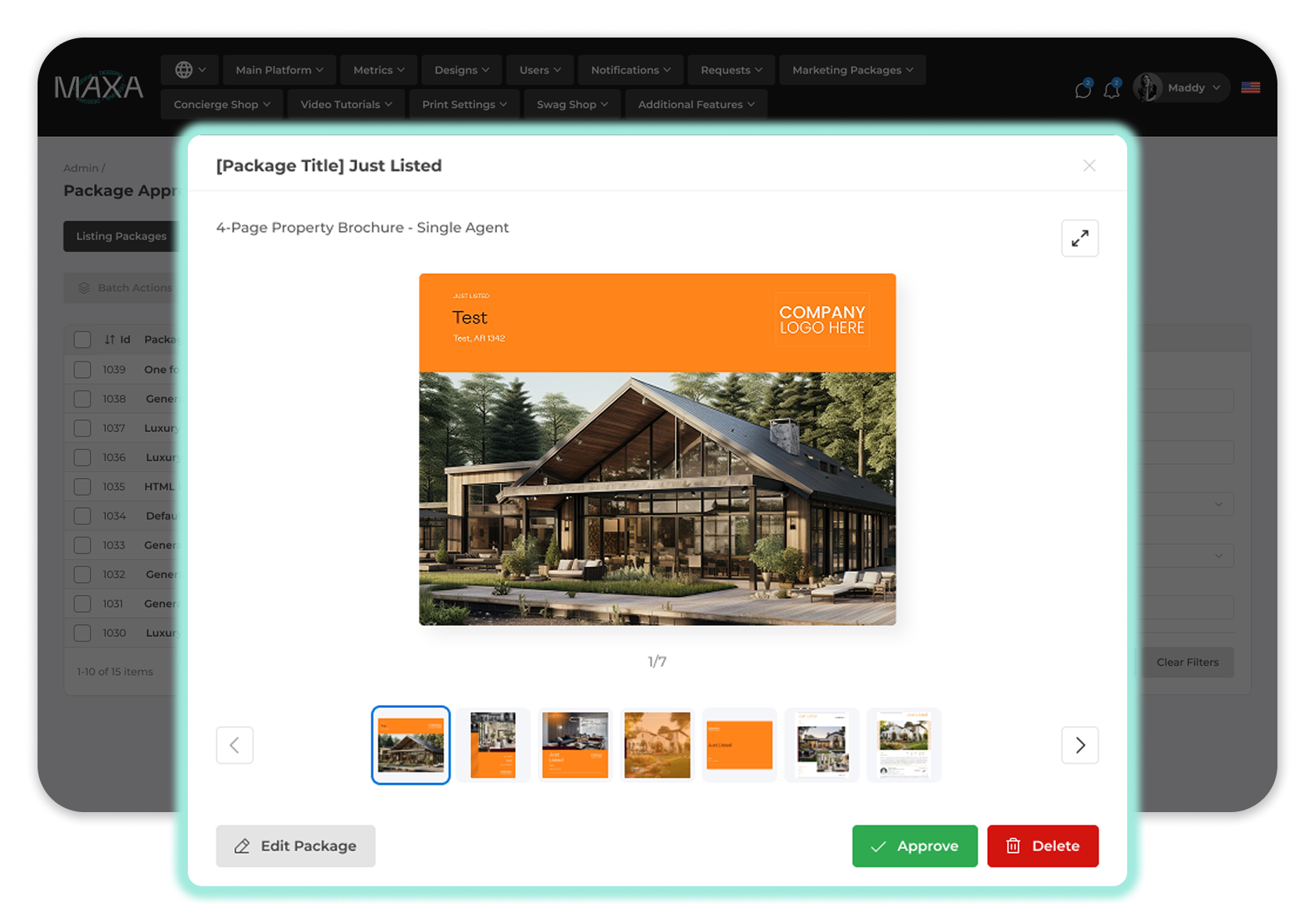
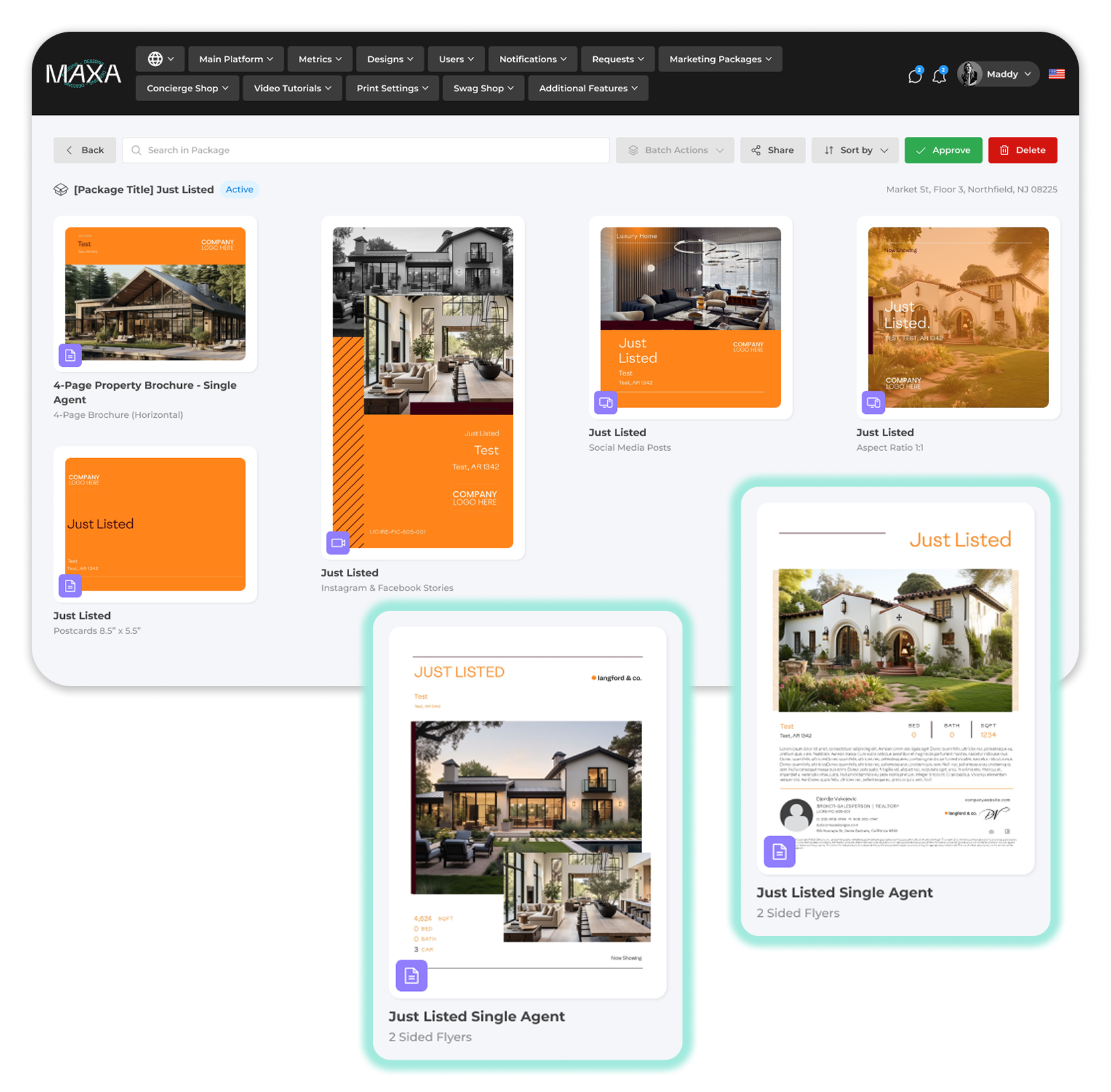
- Click a package title to open the Package Preview and look through every design in the package.
- To make changes, click Edit Package. When you're done, you go right back to Package Approvals with the same tab and filters in place.
Heads up: Package Approvals is under Marketing Packages, not under Compliance.
Finding a Package
Use the filters at the top of the page to narrow the list by MLS ID, Listing Address, Listing Status, User, or Submitted At date range. You can combine filters, and click Clear Filters to see the full list again.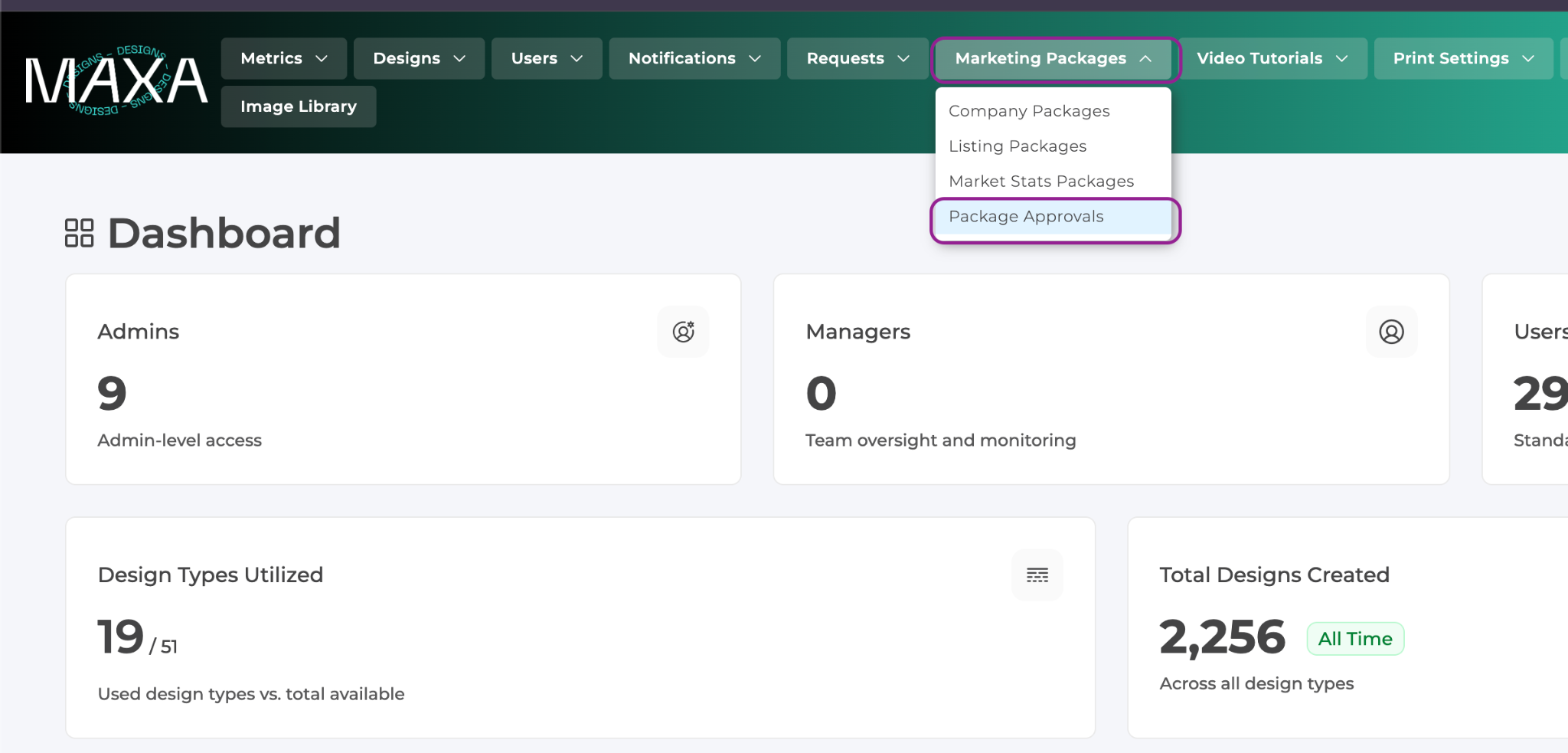
Step 3: Approve or Delete
One Package
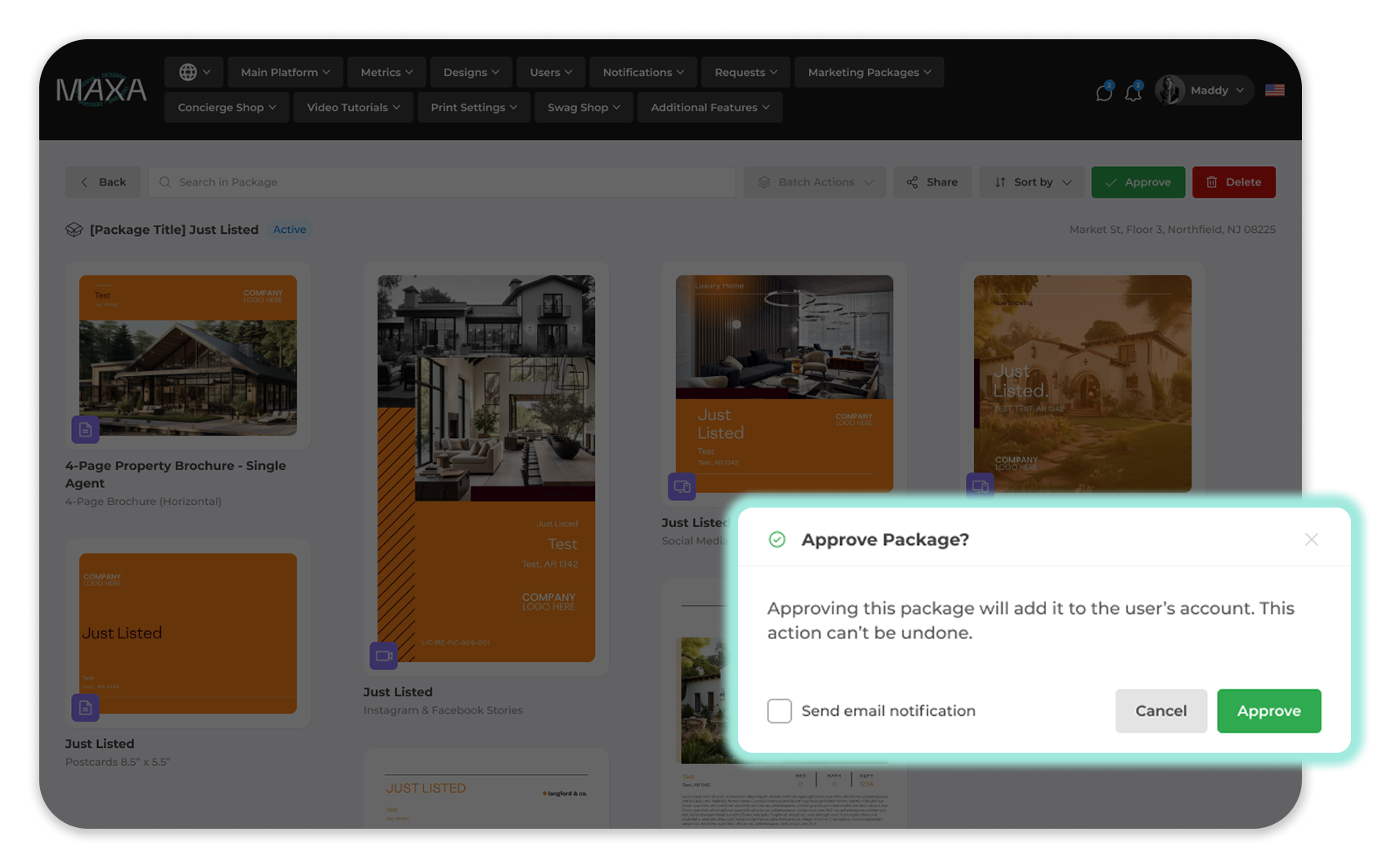
- Click Approve or Delete from the package row, the Package Preview, or Edit Package.
- Check Send email notification if you want the user to get an email.
- Confirm.
Several Packages at Once
- Check the box next to each package. The checkbox in the header selects every package on the page.
- Open Batch Actions and select Approve or Delete.
- Check Send email notification if you want your users to get an email.
- Confirm.
Note: Deleting a package cannot be undone.
Good to Know
- Emails are optional. If Send email notification is unchecked, no email is sent.
- When you approve or delete for several users at once, each user only hears about their own packages.
Approve and Delete are the only actions available right now.
Frequently Asked Questions
Why can't I see Package Approvals?
Make sure the feature is turned on for your account and that you have the Package Approval Admin or Office Package Approval Admin role. Then refresh the page, or sign out and back in.
Why isn't a package showing up?
If you only review the packages you choose, check that Requires Admin Approval is checked on that package. Company packages always need this box checked.
Can my users see a package before I approve it?
No. Your users receive the package only after it's approved.
My user didn't get an email. Why?
Emails only go out when Send email notification is checked. If it was, confirm the user's email address and ask them to check their spam or junk folder.
Is this the same as Compliance?
No. Package Approvals reviews the whole package before your user receives it. Compliance reviews individual designs.